

Collaboration on board items
A board item can bring together collaboration from more than one governed object. Use the board-item source for handoffs, evidence, and decisions that belong to the process. Use the target-record source for information that should remain with the business record outside that board.
In Attachments, choose Upload from computer to add documents directly. A comment is optional. From catalogue remains a separate option while the Moltaro file catalogue is enabled and you have access to it. The same actions are available on the detail page and in its preview drawer.
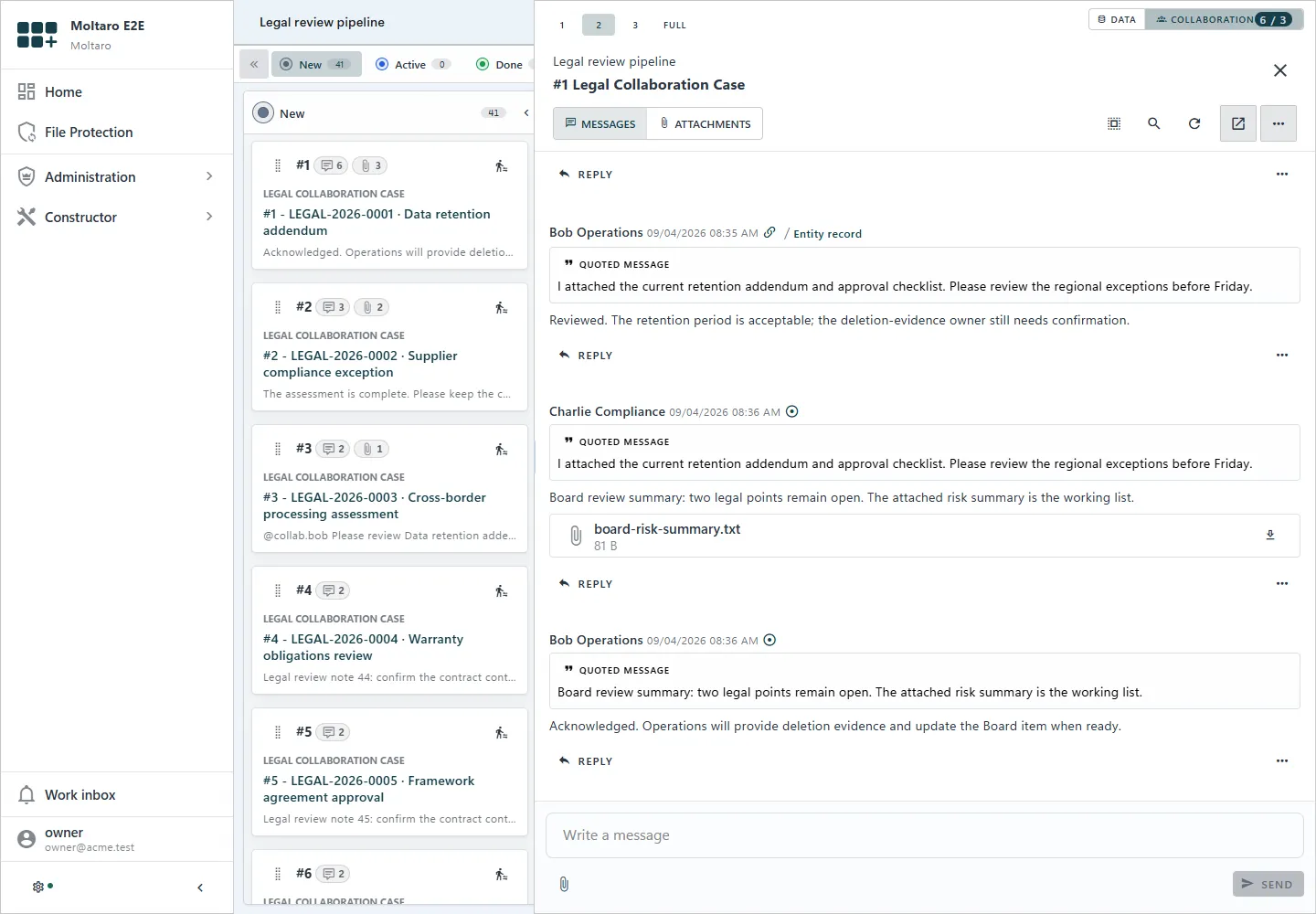
Choose the correct source
Section titled “Choose the correct source”The source selector can show content owned by the board item, content owned by the target record, or the permitted combined context. The exact choices depend on the Board configuration, target resource, and current user’s access.
Board policies remain independent from target-record policies. Being able to read or add process collaboration does not automatically grant the same action on the target record, and the reverse is also true. Counts, history, quotes, and file links include only content the current user can read.
Work in the drawer
Section titled “Work in the drawer”Open a board card preview and use the compact Data or Collaboration switch in the first toolbar row. Width presets stay on the left, and the record title, tags, actions, and configured data remain below. At the narrowest width, the switch becomes icons and Collaboration retains its content badge.
In Collaboration you can:
- send text and several files as one operation;
- mention a colleague and link them to the exact message through Work Inbox;
- reply with one flat quote and jump to the original;
- switch between Messages and Attachments without duplicating content;
- load older bounded history or open a direct link around a message;
- search the permitted context without changing the content badge.
The drawer opens an ordinary timeline at its latest messages. Older bounded history loads above the timeline, while the composer remains at the bottom.
Direct uploads are checked before publication. Send stays unavailable while a file is preparing; rejected or expired files remain removable from the draft. Open Collaboration timelines refresh new messages automatically, while keeping the reader’s current scroll position when they are reviewing earlier content.
A files-only publication does not create an empty message. A file shown in the Attachments view can link back to its permitted messages, including messages from the target-record source when that source is available.
For the complete workflow, access rules, count semantics, and current limits, read Object collaboration.